Guide
How to use OG Image Maker
Choose a background, adjust the content and visual treatment in the editor, then set the generated URL as your page's og:image.
Editor
Using the editor
Choose a background, tune the coloring and layout, then copy the generated URL.
Choose a background in the editor
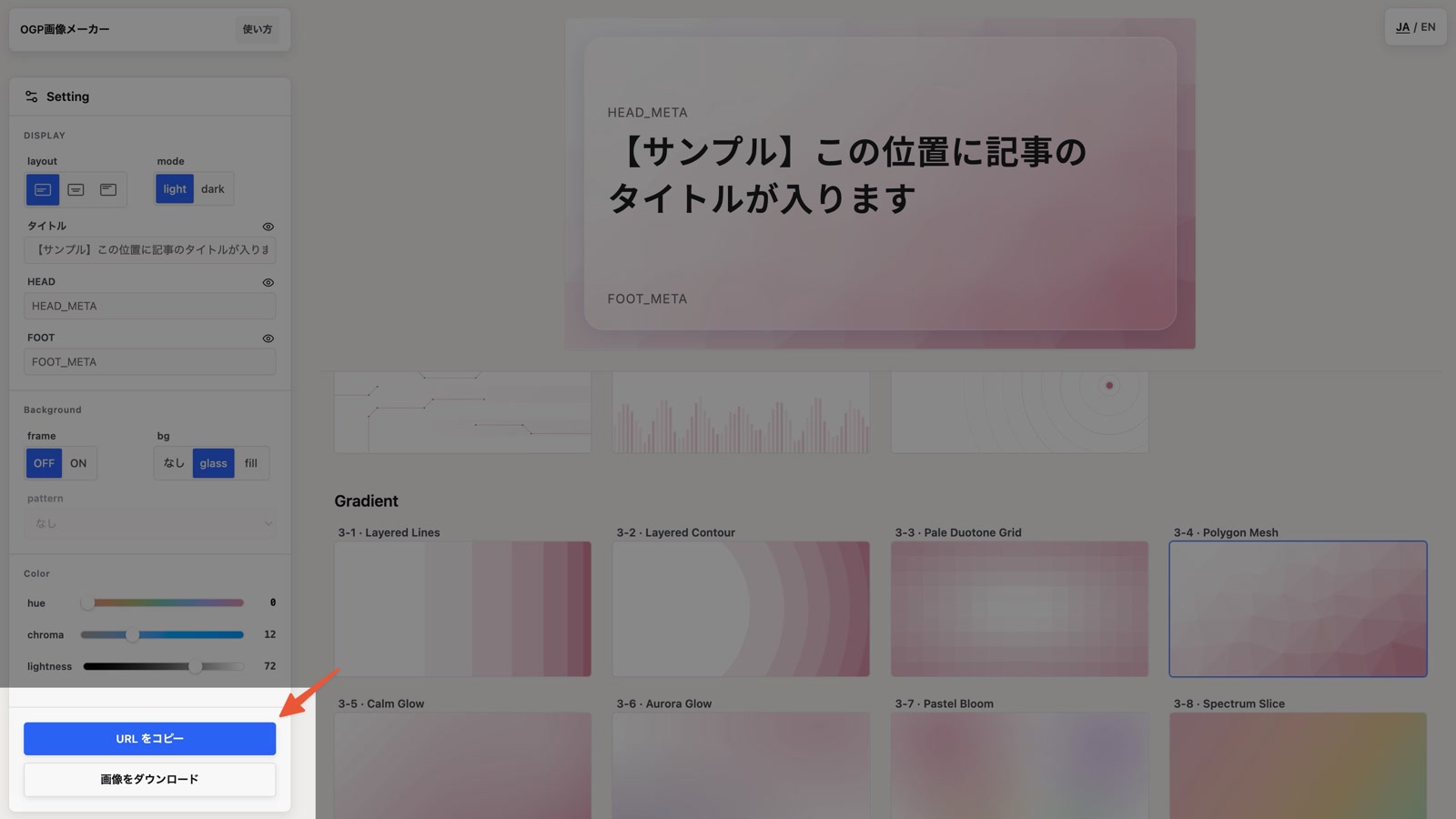
Open the editor, then choose a background from the Pattern, Geometry, or Gradient card list.
Tune the look in the settings panel
Use the settings panel to adjust text alignment, color, and background effects. Edits apply instantly to the selected card, with sample content so you can preview the final look.
Copy the URL and set it as the og:image
Copy the API URL with the "Copy URL" button at the bottom of the settings panel. Replace YOUR_TITLE_HERE/HEAD_TEXT/FOOT_TEXT with your real text, then set the URL as your page's og:image.
Alternatively, you can download the image. Please note that titles and other information will not be included in the output unless you have explicitly entered them. It is also possible to download only the background and use it in your own product.
API
Image generation API
The image generation endpoint is /ogimg-maker/api. It reads query parameters, generates a 1200×630 JPEG, and redirects to a cached image after generation.
Example URL
Combining title: How to use OG Image Maker, type: 2-2, pattern: 1-4, layout: center, head: How to use, and foot: loos.tools produces the following OG image URL.
https://loos.tools/ogimg-maker/api?type=2-2&pattern=1-4&layout=center&head=How+to+use&foot=loos.tools&title=How+to+use+OG+Image+MakerParameters
Text and layout
| Parameter | Default | Description |
|---|---|---|
title | — | Main title text. Up to 120 characters. Omitted when empty. |
head | — | Small meta text above the title. Up to 40 characters. Omitted when empty. |
foot | — | Footer helper text at bottom-left, or centered in center layout. Up to 40 characters. Omitted when empty. |
layout | left | left / center / top-left. |
font | sans | sans / serif. |
Background
| Parameter | Default | Description |
|---|---|---|
type | 1-1 | Background variation ID from the type list below. |
panel | — | glass (= translucent glass) / fill (= solid panel) / pop (= solid panel with offset shadow) |
frame | — | Integer from 0 to 20. Sets the inner frame width; 0 hides it. |
radii | 24 | Integer from 0 to 72. Shared corner radius (px) for the panel and frame. 0 makes square corners. |
pattern | — | Overlays a 1-N Pattern. Only applies to 2-N Geometry backgrounds. |
Color adjustment
| Parameter | Default | Description |
|---|---|---|
mode | light | light / dark. |
h | 240 | Integer from 0 to 360. OKLCH H axis for the key color. |
c | 12 / 16 | Integer from 0 to 40. OKLCH C axis for the key color. Defaults depend on mode (light:12 / dark:16). |
l | 72 / 56 | Integer from 0 to 100. OKLCH L axis for the key color. Defaults depend on mode (light:72 / dark:56). |
Text parameters (title / head / foot / site) are NFC-normalized, trimmed, and truncated to their character limits.
Type list
Pass one of these IDs to the type parameter. Each group has a distinct visual style. You can preview the actual appearance in the editor.
Pattern
Pattern backgrounds built with lines and dot textures
1-11-21-31-41-51-61-7Geometry
Shape-driven backgrounds. Color can be adjusted with h/c/l
2-12-22-32-42-52-62-72-82-92-102-11Gradient
Gradient backgrounds. Color can be adjusted with h/c/l
3-13-23-33-43-53-63-73-8